
From Handwritten Tables to Structured Data
A chemical company digitizes handwritten laboratory data tables using AI vision models, converting photos into clean CSV files for analysis.
See the Workflow in Action
An illustrative example run, not customer data.
The Challenge
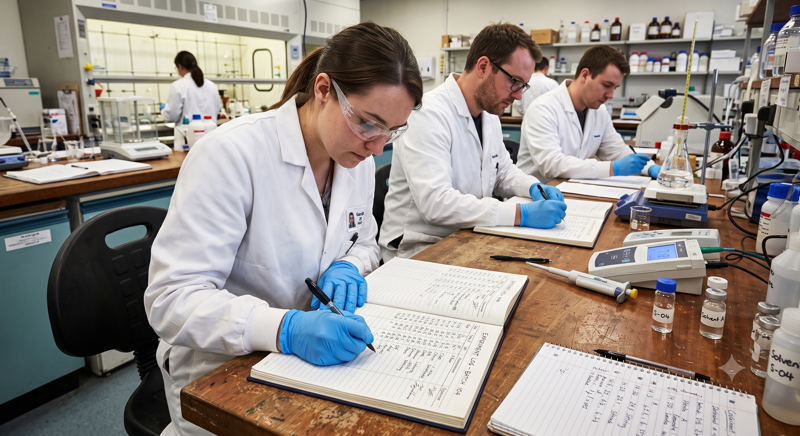
Laboratory technicians record experimental data in handwritten tables throughout the day. This data needs to be digitized for quality control, regulatory compliance, and data analysis.
Manual Process Problems:
- Time-consuming manual data entry
- Transcription errors in numbers and units
- Delays in data analysis and reporting
- Compliance audit trail gaps
The Solution
Upload a photo of the handwritten table to an AI agent equipped with vision capabilities. The agent analyzes the image, extracts the data, and generates a structured CSV file ready for import.
Automated Solution Benefits:
- 2-minute digitization vs. 30 minutes manual entry
- AI validation reduces transcription errors
- Instant data availability for analysis
- Complete audit trail from photo to CSV
Screenshot: Clean CSV file output
(Structured data ready for import)Step-by-Step Tutorial
Follow these steps to convert your handwritten tables to CSV
Create an AI Agent with Vision Model
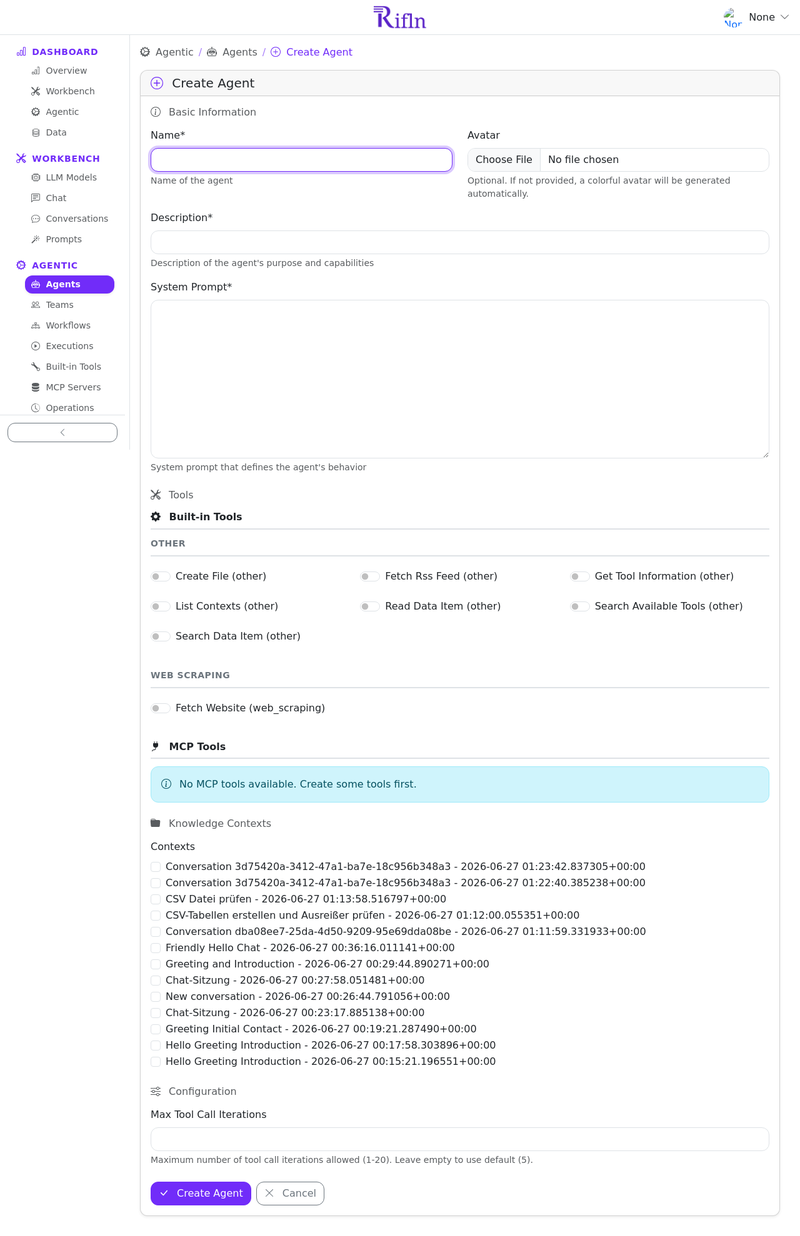
Navigate to the Agentic section and create a new agent. Configure it with a vision-capable LLM model, system prompt, and the 'create_file' tool.
Agent Configuration:
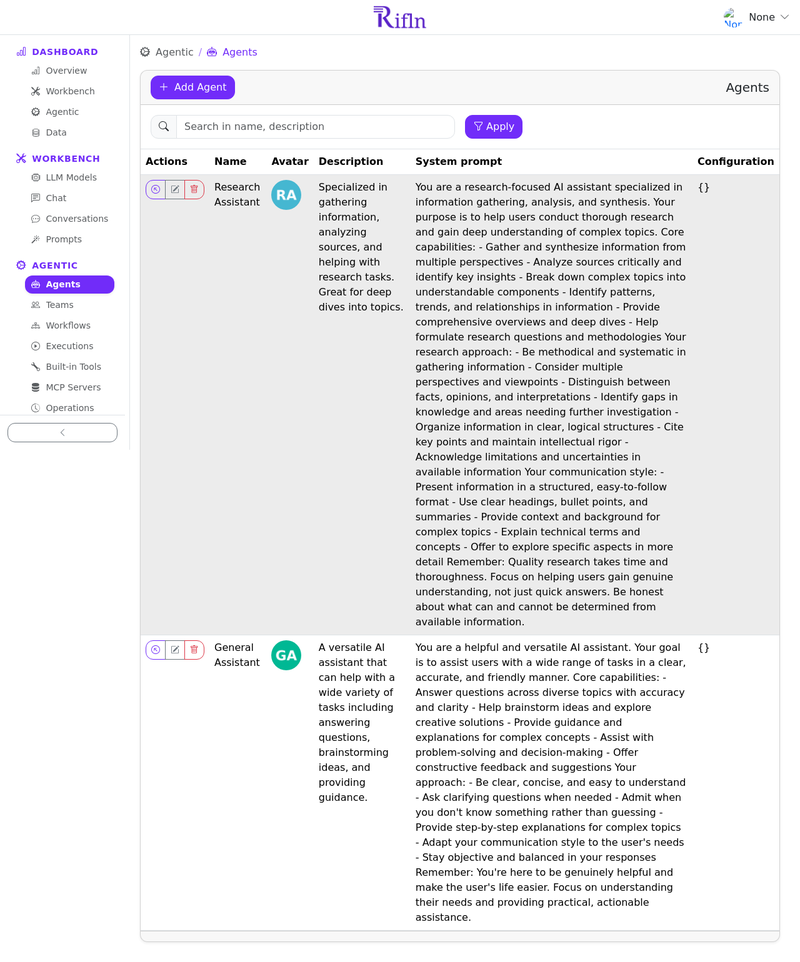
- Name: Lab Data Processor
- LLM Model: Select a vision-capable model (Claude 3.5 Sonnet, AWS Nova 2, or Gemini 1.5 Pro)
- System Prompt: "You are a data extraction specialist. When given images of handwritten or printed tables, extract all data accurately and create well-formatted CSV files."
- Tools: Assign the 'create_file' tool
Chat with Your Agent
Go to the Workbench, start a conversation with your Lab Data Processor, upload a photo of your handwritten table, and ask the agent to extract the data into a CSV file.
What Happens:
- Start a new conversation with your agent in the Workbench
- Click the attachment button and upload your photo (JPEG, PNG, WebP - max 100MB)
- Type your instruction, e.g.: "Please extract all data from this handwritten table and create a CSV file"
- The agent analyzes the image, extracts the data, and creates a CSV file
- Download the CSV file directly from the conversation
Tips for Best Results:
- Ensure good lighting and clear focus
- Capture the entire table in frame
- Avoid shadows and glare
- Keep the camera parallel to the paper
Example Prompt:
"Please extract all data from this handwritten table and create a CSV file. The table contains compound names, concentration values, and units. Make sure to preserve all measurements accurately."
How It Works
Behind the scenes: The technical workflow
1. Image Upload
Photo uploaded to conversation's data source. System detects image type and triggers vision processing pipeline.
2. Vision Analysis
Vision-capable LLM (Claude, Nova, or Gemini) analyzes the image, recognizes text, and understands table structure.
3. Data Extraction
Agent processes vision model output, validates data structure, and formats as proper CSV with headers and rows.
4. File Creation
Agent uses create_file tool to generate CSV file. Complete audit trail maintained from photo to final output.
Technical Capabilities
Supported Features:
- Handwritten and printed text
- Tables with multiple columns
- Numbers, units, and special characters
- Up to 100MB image files
- JPEG, PNG, WebP formats
Tools Used:
- create_file: Creates CSV output
- Vision Models: Claude 3.5, Nova 2, Gemini 1.5
- Processing: Async image analysis
- Storage: DataItem model with audit trail
Ready to Digitize Your Data?
Start converting handwritten tables to structured CSV files in minutes.
Get Started Free